That screenshot a friend forwarded, the too-perfect product shot, the "news" photo that gives you a weird feeling: any of them could be AI, and your gut stopped being a reliable detector a while ago. The good news is you don't need a laptop or a forensics degree to check if an image is AI-generated on your phone. A handful of checks, most of them free and sitting inside apps you already have, will catch the overwhelming majority of fakes in under a minute. I'll walk through the exact steps for both iPhone and Android, in the order I actually run them. And I'll be honest about where each one quietly fails, because that part matters as much as the checks do.
The Fastest Way to Check if an Image Is AI-Generated on Your Phone
The quickest move is to hand the file to a tool that reads its hidden data for you, and you can do that right in your phone's browser with nothing to install. Open the Fake Image Detector scan on this site, upload the photo (a JPG works best), and you get a read in seconds. It runs several forensic checks at once, a metadata and Content Credentials read, Error Level Analysis, and an AI-signal check, then shows you which layer actually drove the verdict in a "View detection signals" panel.
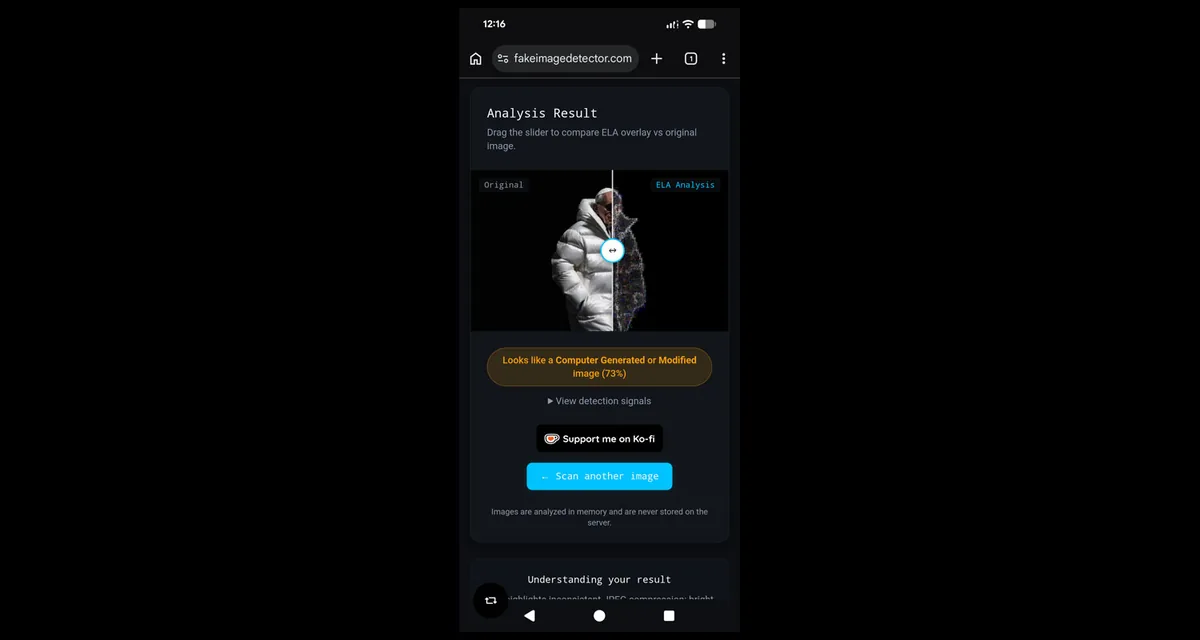
Why start in a browser instead of the App Store? Because it works the same on an iPhone in Safari and on an Android phone in Chrome, it uses no storage, and there's nothing to update or sign up for. Upload, read, done.
Here's the honest part. This scan is strongest at reading a file's metadata and Content Credentials and giving you a fast AI-likelihood read. It's weakest when the image is a screenshot, because screenshots usually strip that hidden data, and the error-level overlay on its own can't separate an AI image from an ordinary photo edit. So treat the scan as your fast first pass, then use the watermark check below when the file looks like it has been through a few re-saves.
Ask the Gemini App to Read the Invisible Watermark
If a photo came from a mainstream AI tool, the single strongest signal is usually an invisible watermark called SynthID, and Google's free Gemini app will read it for you. SynthID is a pattern woven directly into the pixels of images made by Google's models, and since a May 2026 partnership with OpenAI, it now rides inside many images from ChatGPT too. Unlike metadata, it's built to survive cropping, compression, and re-saving, which is exactly why it holds up when a screenshot has wiped everything else off.
The steps are the same on iPhone and Android. Install the Gemini app (or open Gemini on the web), sign in with a Google account, tap the image icon, and upload your photo. Then ask it plainly: "Was this created or edited with Google AI?" or "Is this AI-generated?" Gemini checks for the watermark and tells you what it finds, sometimes even which part of the image was touched.
Two things to keep in mind. Crop tight around the image before you upload, and don't send a collage, because a busy screenshot lowers the accuracy. And here's the limit that trips people up: Gemini can only recognize watermarks from tools that add them, so a "no watermark" answer never rules out AI from a model that doesn't watermark at all.
Check the Content Credentials Baked Into the File
Plenty of AI tools now stamp a signed label into the file itself, called C2PA Content Credentials, and when it's present it tells you what made or edited the image. Think of it as a digital nutrition label: OpenAI, Adobe Firefly, and others attach one automatically, and some newer phone cameras attach credentials that certify a shot is a real camera photo, not AI.
On a phone, the easiest way to read credentials is the "View detection signals" panel from that first browser scan. You can also use the Gemini app's Content Credentials check, which is on Android now with iPhone support arriving, or paste the image into an online Content Credentials verifier. Any of the three will show you the trail if there is one.
The catch is fragility. A screenshot or a trip through most social platforms strips these credentials clean off, so a blank result is extremely common and proves nothing by itself. If you have a suspect image open right now, this is the moment to run it through the scan and open the signals panel. It takes about ten seconds and tells you whether there's a trail worth trusting.
Reverse Image Search Straight From Your Phone
Sometimes the fastest way to expose a fake isn't to analyze the pixels but to find where the picture came from. A reverse image search gives you context your eyes can't, like whether a dramatic "news photo" actually traces back to an AI art gallery or a prompt someone posted last week.
On iPhone, long-press the image in Chrome and tap "Search image with Google," or open the Google app and use Lens. On Android, Lens is built in: long-press in Chrome, or tap the Lens icon in the Google app or in Google Photos. Either way you're looking for one simple pattern. If a photo shows up only on scattered social posts and never on any established source, stay skeptical. If the same scene appears credited to a generator, you have your answer.
The limitation is timing. A freshly made AI image might have no matches yet, so empty results are not a clean bill of health. It's one more signal, not the verdict.
Look for the Visual Tells That Still Slip Through
When the file has no signals left to read, your eyes become the tiebreaker, so aim them at the spots AI still gets wrong. The usual offenders: hands with extra or fused fingers, garbled text on signs and labels, earrings or teeth that don't match side to side, skin that looks waxy or too smooth, eyes with mismatched reflections, and backgrounds that melt, repeat, or quietly bend physics.
A word of caution I can't repeat enough: every new model fixes more of these flaws, so a clean-looking image is not proof of anything. In my experience, visual tells are useful for confirming a hunch, not for clearing an image you already doubt. Use them last, and lightly.
Why "No AI Detected" Doesn't Mean the Photo Is Real
Here's the rule that separates people who get fooled from people who don't: a negative result means nothing was found, not that the image is authentic. Most real photos carry no watermark and no credentials either. Screenshots strip metadata. Watermarks only exist if a participating tool made the image. So the absence of a signal tells you almost nothing on its own.
"No AI detected" is the most misread result on the internet. It means nothing was found, not that the picture is real.
This is exactly why you stack the checks instead of trusting one. Weigh the source, line up two or three signals, and when the stakes are real, like money changing hands, a reputation, or breaking news, never act on a single green banner. A common mistake I see is someone running one scan, reading "clean," and forwarding a fake to a group chat with full confidence.
My One-Minute Phone Workflow, Start to Finish
Here's the exact order I run these on my own phone when an image feels off. Each step takes seconds, and most of the time I have an answer before the coffee's cool.
Keep the original file if you can, and avoid screenshotting it, since that wipes the hidden data.
Drop it into the browser scanner here, read the verdict, and open "View detection signals" to see whether the metadata or the AI-signal made the call.
If it might be a screenshot or looks like it came from a Google or OpenAI tool, ask the Gemini app about the watermark.
Run a reverse image search for context and source.
Only if every signal comes back blank, judge the visual tells, and stay skeptical either way.
That sequence catches the large majority of fakes I run into. Just last week, someone shared what looked like a dramatic wildfire photo in a group chat. The browser scan found AI signals, a reverse image search found no original source, and Gemini confirmed a SynthID watermark. The whole check took less than a minute. The point isn't any single tool. It's that two or three cheap checks, stacked, beat one confident guess every time.
Common Questions About Checking AI Images on Your Phone
Can I tell if an image is AI-generated just by looking at it?
Does screenshotting an AI image remove the proof?
Is there a free way to check without installing anything?
What's the single most reliable check?
Wrapping Up: Your Next Step
Checking a photo on your phone isn't about one magic verdict. It's about stacking a few fast, free checks and reading them honestly, especially the "nothing found" results that fool most people. Do that and you'll catch the overwhelming majority of fakes in the time it takes to read a text.
So here's your next step. The next time an image makes you pause, don't forward it and don't trust your gut. Open the Fake Image Detector scan on this site, upload the picture, and read what's actually driving the result. If it looks like a screenshot, follow up with the Gemini watermark check. Two minutes of checking beats being the person who shared the fake.